

3. Installation and launch
The full operational, safety, workflow, reporting, locale, and issue reference.
3.1 Package contents
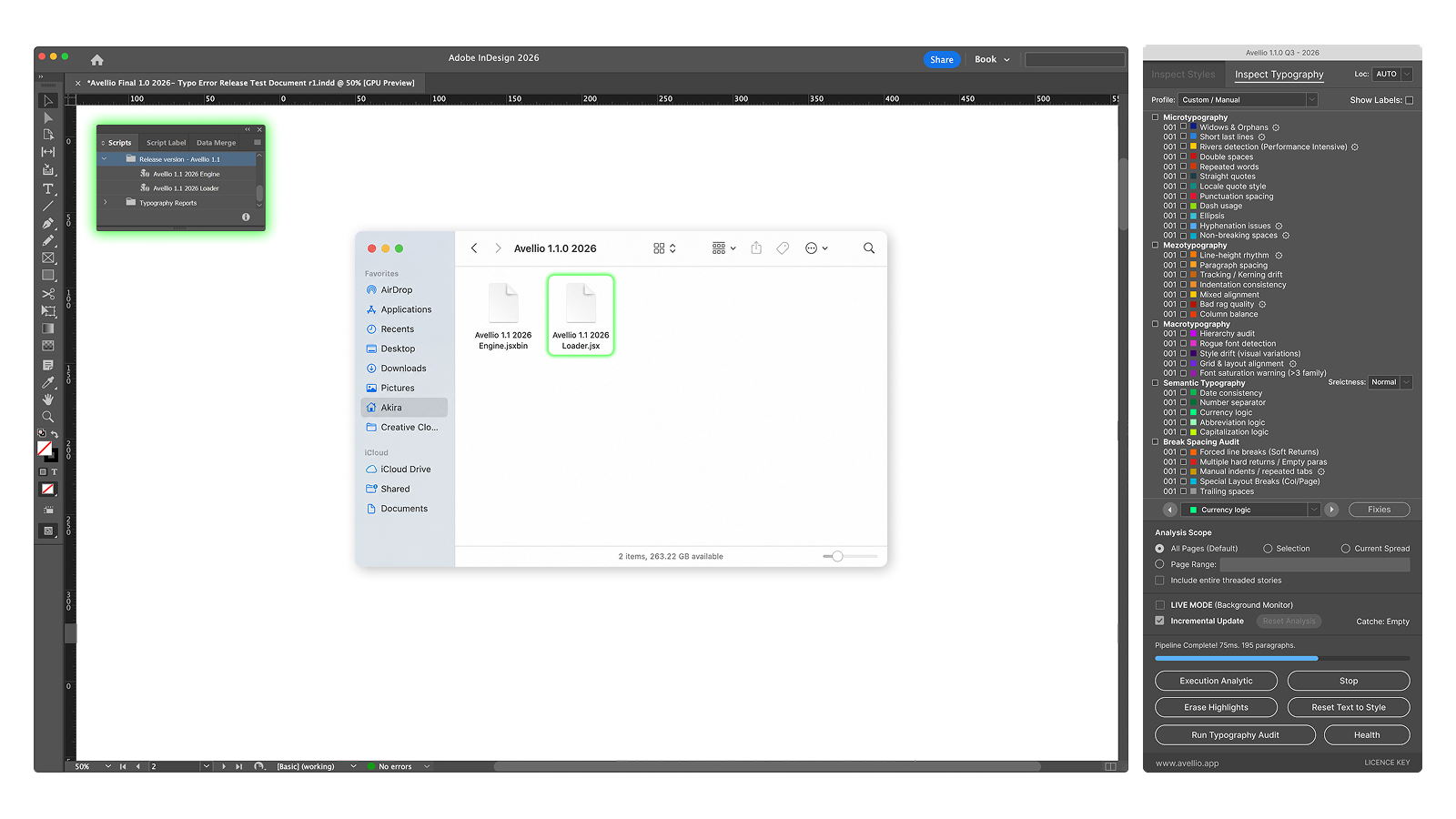
The distributed Avellio package contains two matched components:
- an Avellio Loader script (
.jsx); - the corresponding protected Engine (
.jsxbin).
The exact release filenames may include the product version. Do not mix a Loader from one release with an Engine from another release. Keep both files in the same installed package location and retain their supplied names.
3.2 Install through the InDesign Scripts panel
- Open Adobe InDesign.
- Open Window > Utilities > Scripts.
- In the Scripts panel, reveal the user scripts folder in Finder or File Explorer.
- Copy the complete Avellio package into that folder, keeping the Loader and Engine together.
- Return to InDesign and refresh or reopen the Scripts panel if necessary.
- Start Avellio by running the Loader. Do not run or edit the protected Engine directly.
Installing in the user scripts folder normally avoids system-wide permission requirements. If your organization deploys scripts centrally, follow its managed installation process.
3.3 First launch
Open the document you intend to inspect, make it the active document, and then run the Loader. Avellio opens as a modeless palette so you can move between the panel and the document.
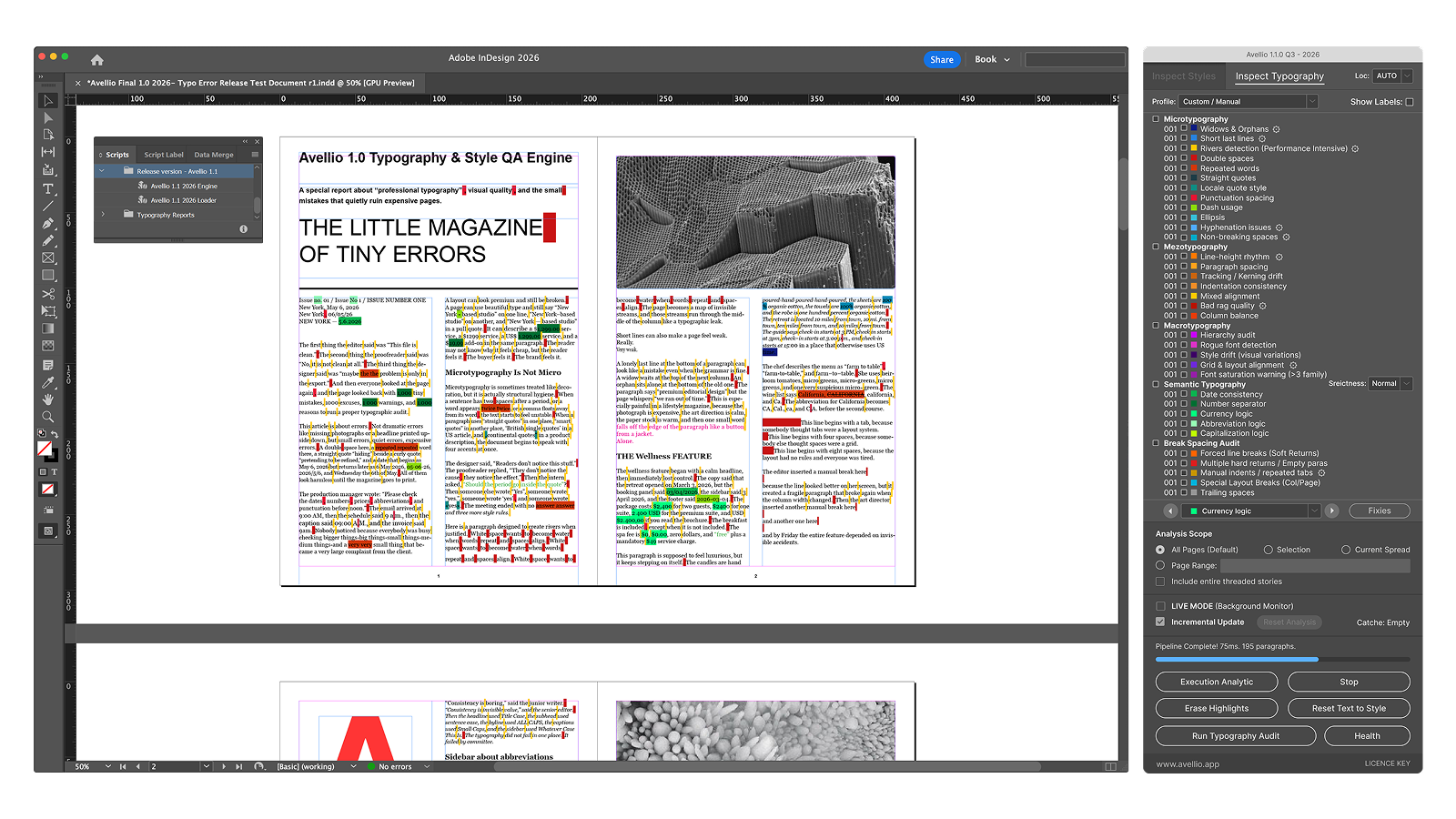
Important — The palette is bound to the launch document. If you activate a different InDesign document, Avellio will reject document-dependent operations. Close the palette, activate the intended document, and launch Avellio again.
3.4 Updating Avellio
- Close the Avellio palette.
- Close InDesign if required by your deployment process.
- Replace both Loader and Engine with the matched files from the new release.
- Do not leave an older Engine beside a newer Loader.
- Restart InDesign, launch the Loader, and run Health after activation.
3.5 If the Engine does not connect
Check that:
- both supplied files are present;
- they are from the same release;
- neither file was renamed, quarantined, or partially copied;
- the Loader was launched rather than the Engine;
- the Scripts panel points to the intended installation folder.
Reinstall the complete release package if the connection cannot be restored.
Release sourceThis page was generated from the Markdown companion of the verified distribution PDF.