
4. Run your first Typography Audit
Install Avellio, run a first audit, review findings, fix safely, and verify the result.
INSPECT READ-ONLY Typical time: depends on document size and enabled checks. Document impact: analysis does not rewrite the copy; diagnostic rendering can add temporary markers.
4.1 Select a profile
Open Inspect Typography and choose Conservative Proofing.
This profile minimizes false positives and enables clear proofreading checks such as double spaces, repeated words, straight quotes, punctuation spacing, ellipses, non-breaking spaces, dates, numbers, currencies, empty paragraphs, and trailing spaces.
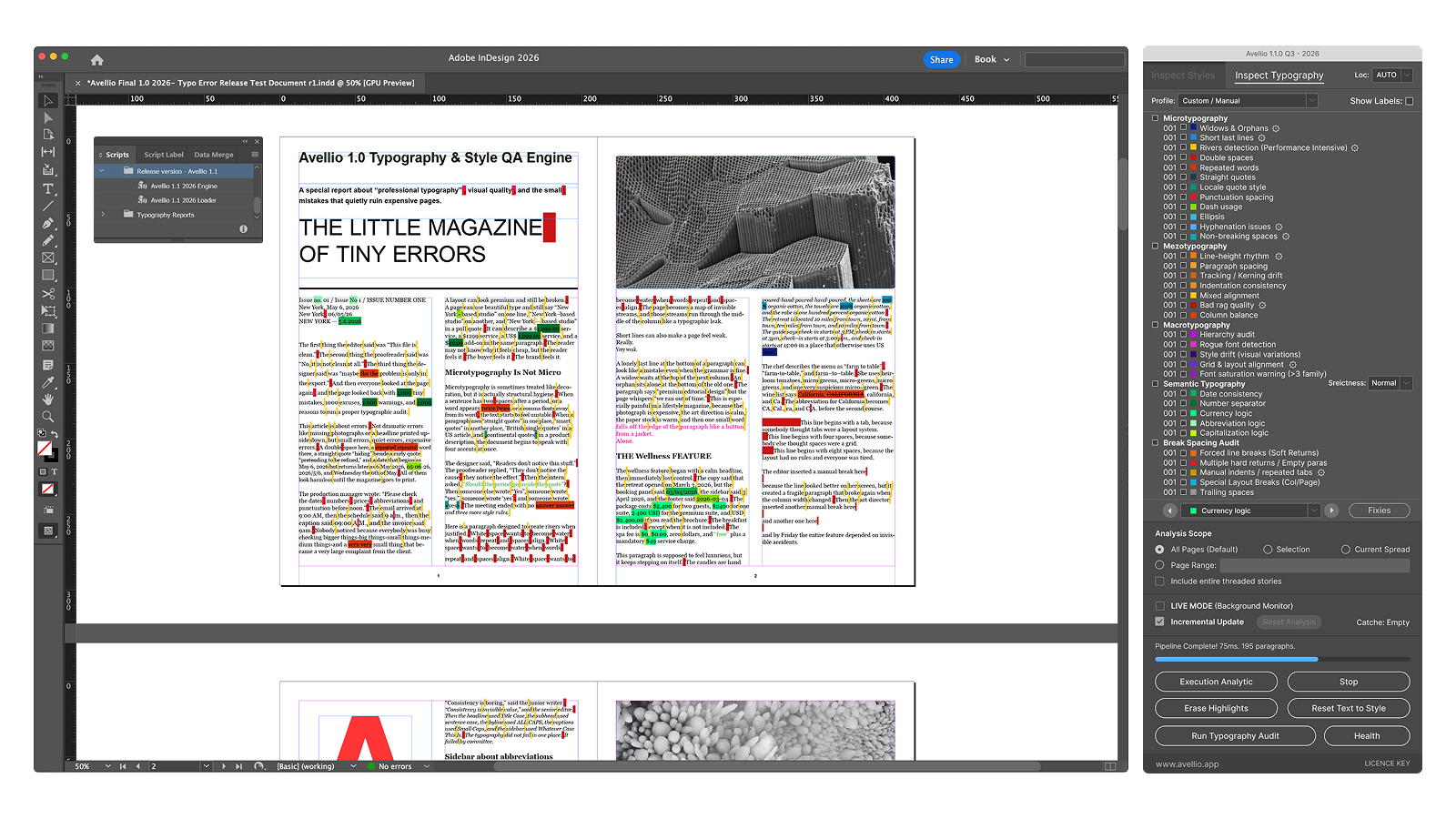
Other profiles are available when you need them:
| Profile | Use it for |
|---|---|
| Editorial Strict | Books, articles, and long-form editorial QA. |
| Corporate Report | Business, finance, tables, numbers, and structured reports. |
| Magazine Layout | Visual layout, rag, spacing, hierarchy, grid, and font QA. |
| Multilingual QA | Locale-sensitive mixed-language documents. |
| Deep Audit | Maximum internal coverage and detailed QA. |
| Custom / Manual | Your own combination of checks. |
You can change individual checkboxes after applying a profile. Avellio then treats the selection as Custom / Manual.
4.2 Choose a locale
Leave  Loc: AUTO when paragraph languages are assigned correctly and the document can contain more than one language.
Choose an explicit locale when the entire scope must follow one convention, such as  EN US,
  EN UK,
  CZ,
CZ,  DE,
DE,  FR,
FR,  ES, or another regional profile.
Changing locale requires a new run.
| Family | Available compact labels |
|---|---|
| Automatic | AUTO |
| English |  EN Intl, EN US, EN UK, EN Intl, EN US, EN UK,  EN AU, EN AU,  EN NZ EN NZ |
| Czech and Slovak | CZ,  SK SK |
| German and Swiss | DE,  DE AT, DE AT,  DE CH, CH Mix DE CH, CH Mix |
| French and Italian | FR, FR CH,  FR CA, FR CA,  IT, IT CH IT, IT CH |
| Spanish | ES,  ES LatAm, ES LatAm,  ES AR, ES AR,  ES CL, ES CL,  ES CO, ES CO,  ES PE ES PE |
| Dutch, Polish, Portuguese |  NL, NL,  PL, PL,  PT, PT,  BR BR |
| Nordic |  SE, SE,  DA, DA,  NO, NO,  FI FI |
| Central and Southeast European |  HU, HU,  RO, RO,  HR, HR,  SI SI |
Flags help you scan regional choices; the written code remains authoritative. AUTO, English International, and Latin America use neutral region symbols because they do not represent one country.
4.3 Run the full audit
- Confirm the profile, locale, and scope.
- Leave LIVE MODE off for this first authoritative pass.
- Click Typography Audit.
- Wait for the audit and report to finish.
The visible list covers five areas:
- Microtypography;
- Mezotypography;
- Macrotypography;
- Semantic Typography;
- Break & Spacing Audit.
Issue counts appear beside the enabled rows. Some rows combine several related issue types, so one row can represent more than one kind of result.
Success looks like: issue counters and the bottom navigator are active, and the result comes from Typography Audit rather than Live Mode alone.
Release sourceThis page was generated from the Markdown companion of the verified distribution PDF.